Before you start
Do this on your phone first — it'll save you a lot of pain in a few minutes.
- Open your phone's browser and go to stremio.com.
- Click Login (top right) and sign in with the username and password I sent you.
- Leave that tab open — you'll need it to scan a QR code later.
You'll also need:
- A Firestick, Fire TV, or Android TV box plugged in and online.
- The Downloader app already installed on it (search the Amazon App Store for "Downloader" — orange icon with a down arrow).
Install Stremio
Same Downloader trick as the Sparkle guide, different code.
Open Downloader on your Firestick.
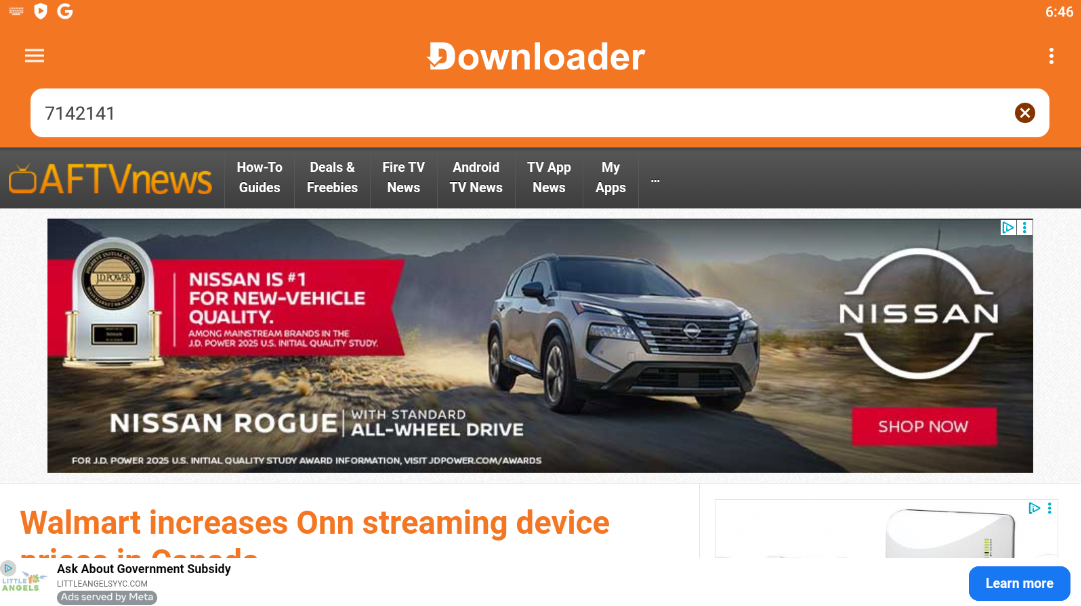
Type this code into the URL bar and press Go:
Downloader will fetch the installer. When it prompts you to install, click Install.
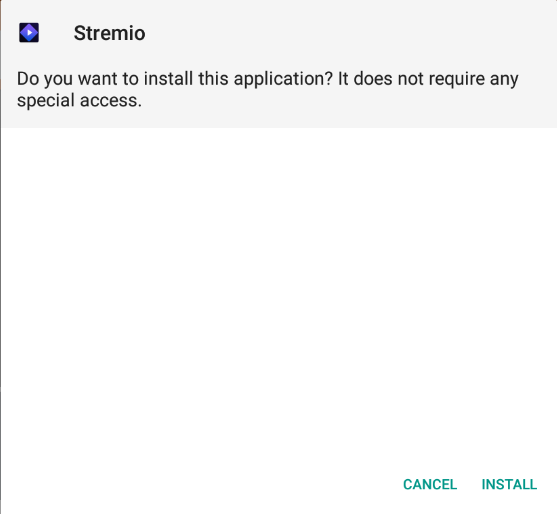
When it finishes, press Home on your remote, go to Your Apps & Channels, and open the new Stremio app.
Sign in with the QR code
This is where step 1 pays off.
Stremio opens and shows a Link Account screen with a big QR code.
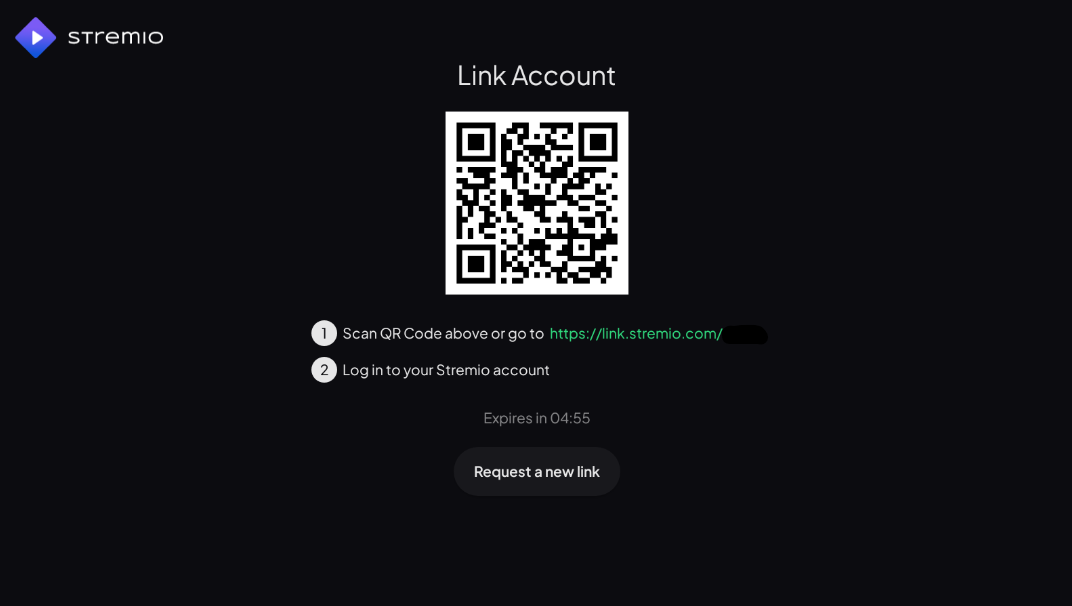
Grab your phone (the one already logged into stremio.com from step 1) and point its camera at the QR code. A notification will pop up — tap it to open the link.
Your phone confirms "yes, this TV is me" and Stremio on the TV signs in. No typing.
The home screen
A quick lay of the land before we start using it.
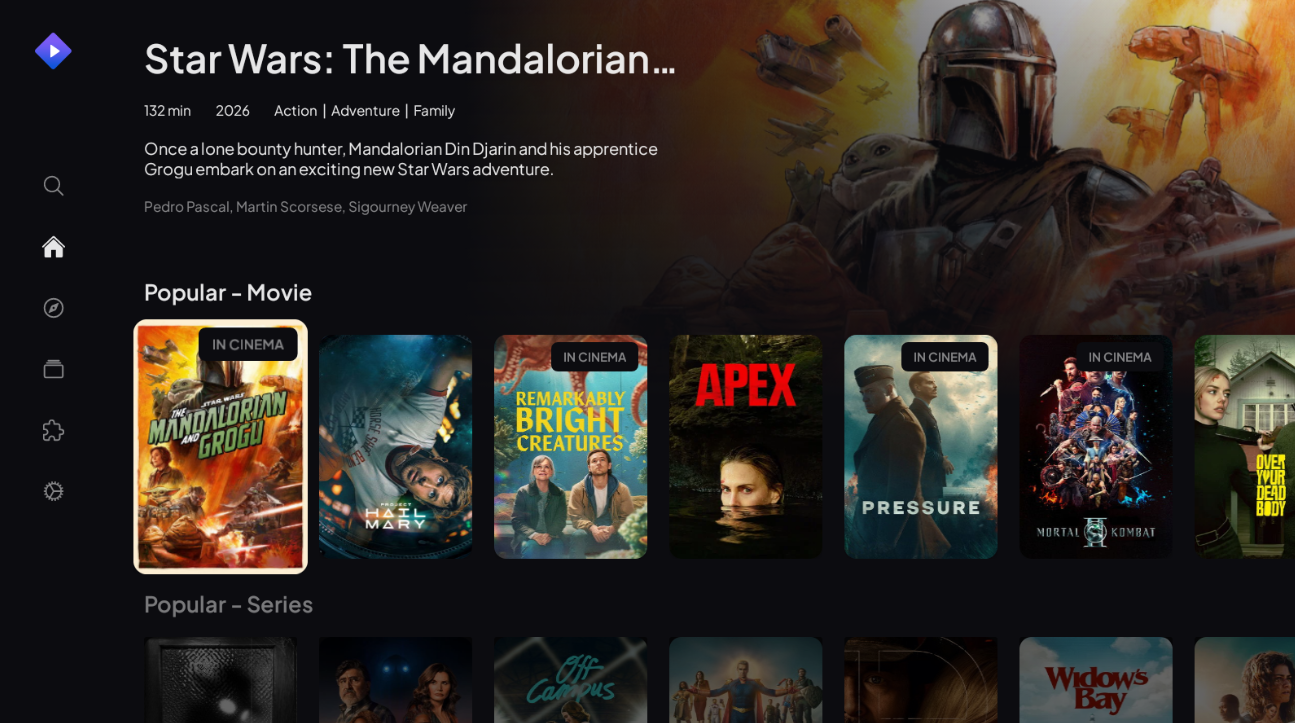
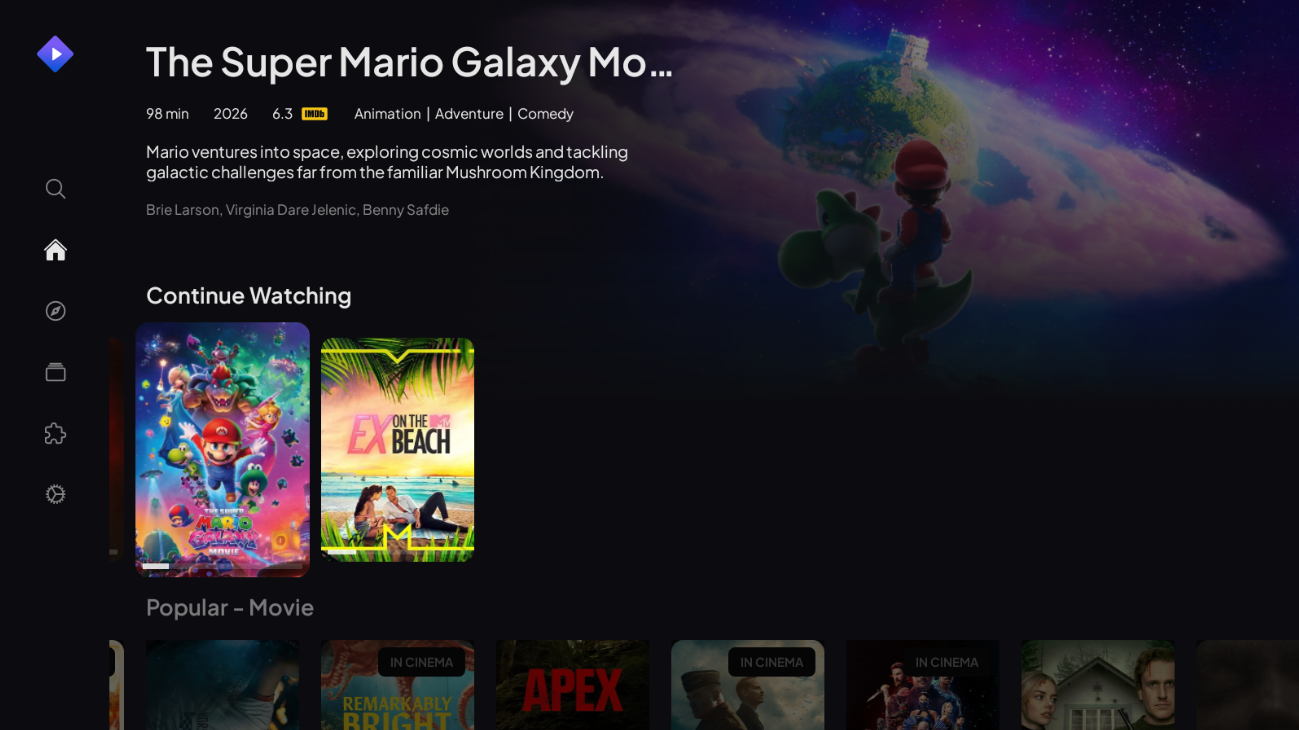
The big banner at the top is a featured title. Underneath are rows of Popular Movies, Popular Series, and so on. Scroll down to see more.
The icons down the left side are the main app navigation:
- 🔍 Search — find any movie or show by name
- 🏠 Home — what you're looking at right now (Continue Watching + popular rows)
- 🧭 Discover — browse by genre, year, rating
- 📚 Library — shows you've added to follow / saved
- 🧩 Addons — where streams come from (I handle this part for you)
- ⚙️ Settings — playback, interface, account
Press left on the remote from any home-screen tile to open the sidebar.
Search
Fastest way to find something specific.
Click the magnifier icon on the left sidebar. A search bar appears at the top — start typing the name of a movie or show.
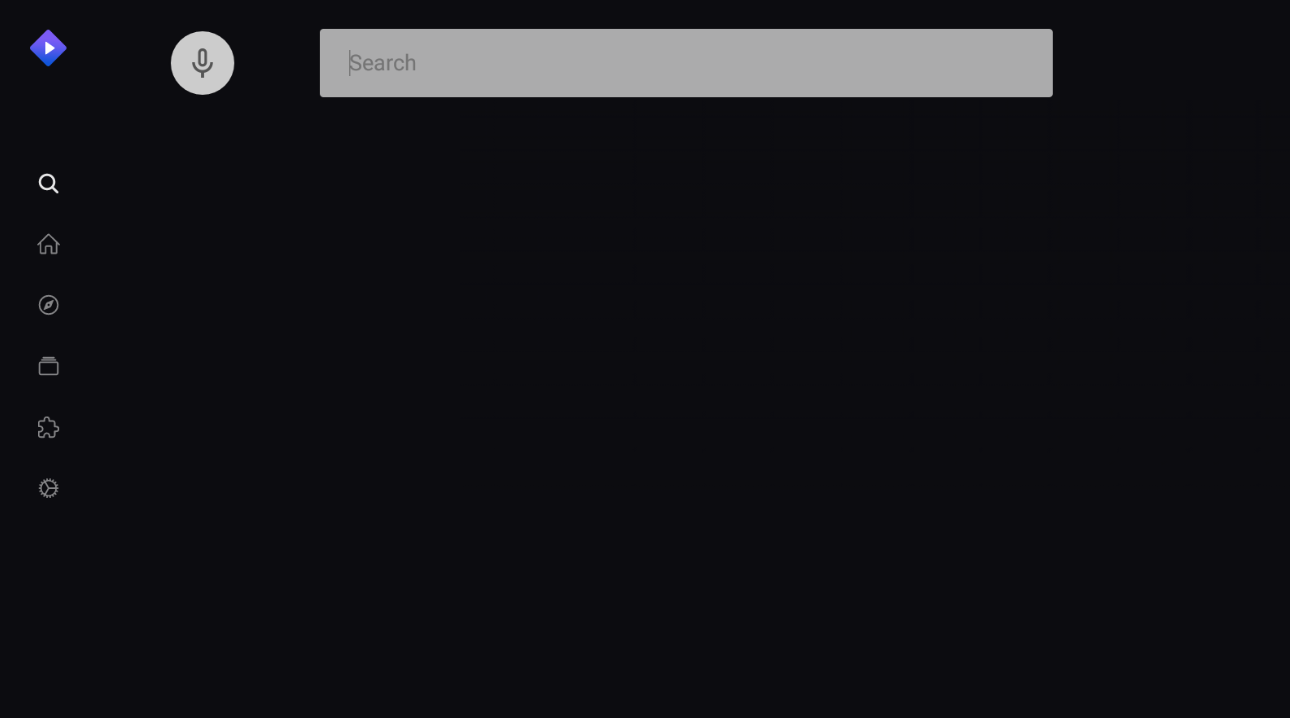
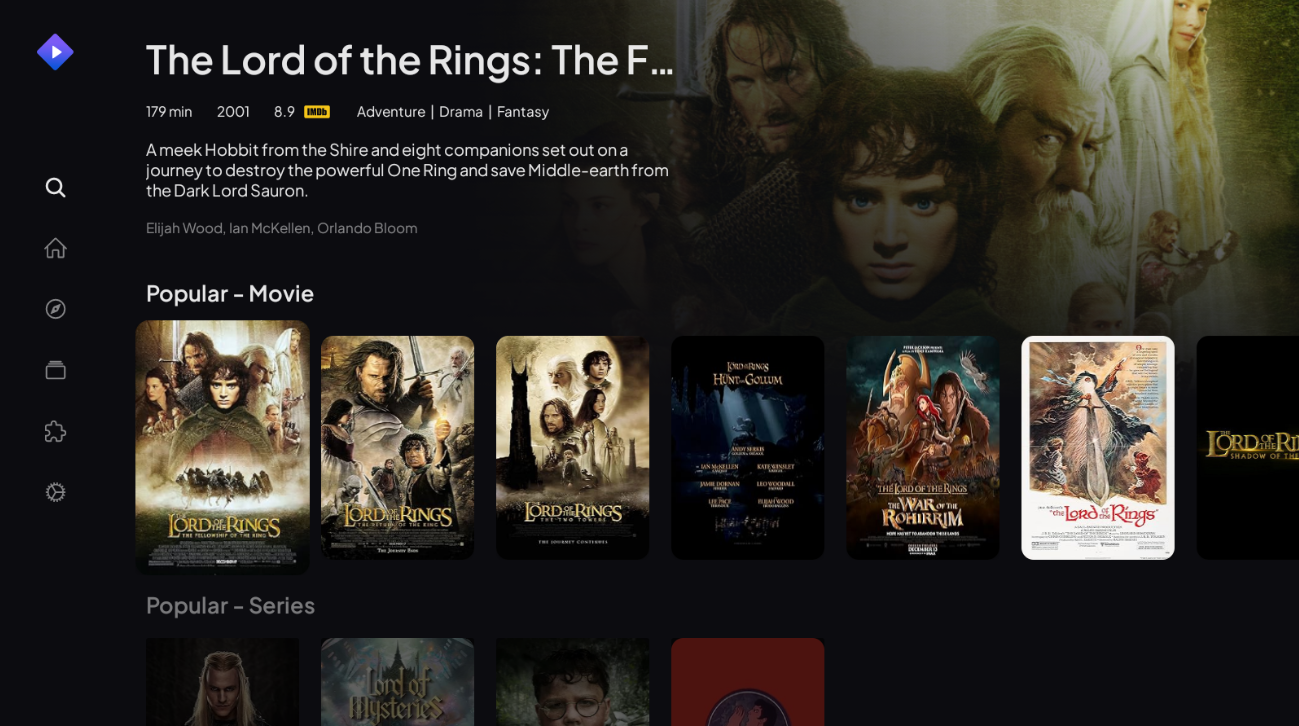
Results appear as soon as you've typed enough to narrow it down. Pick the one you want and press OK.
Library & episode alerts
This is the bit a lot of people miss — and it's the best part of Stremio.
The Library is your personal watchlist. Anything you add stays in sync across every device you sign into (TV, phone, browser).
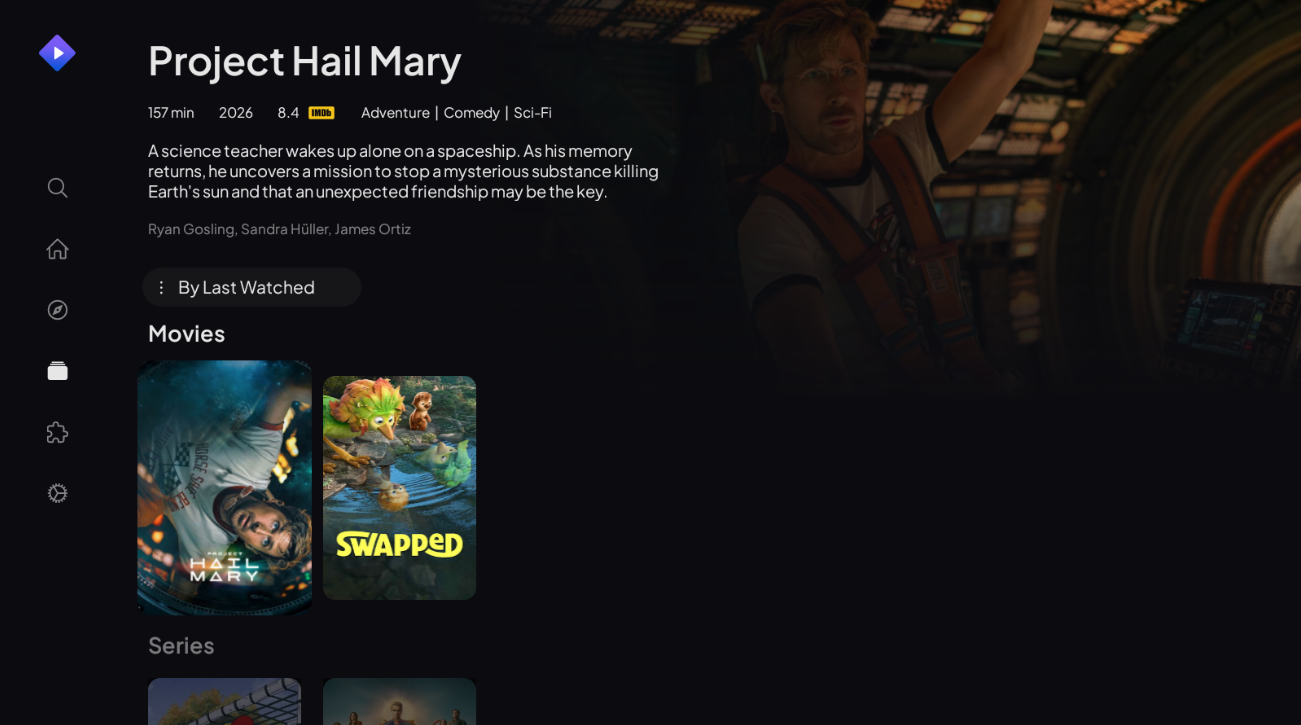
To add a title: open it, then click the bookmark / library icon on its detail page. It now lives in here.
Sort options at the top (By Last Watched, A–Z, Recently Added, etc.) help when your library gets big.
Why this matters for shows: once a series is in your library, Stremio quietly watches for new episodes. When one drops, it shows up in your Continue Watching row on the home screen with a little notification badge.
Picking a stream
You open a title and get a list. Here's what you're looking at.
On any title's detail page, scroll down past the description and you'll see a list of streams. Each row is one source — same movie, different quality / size / language.
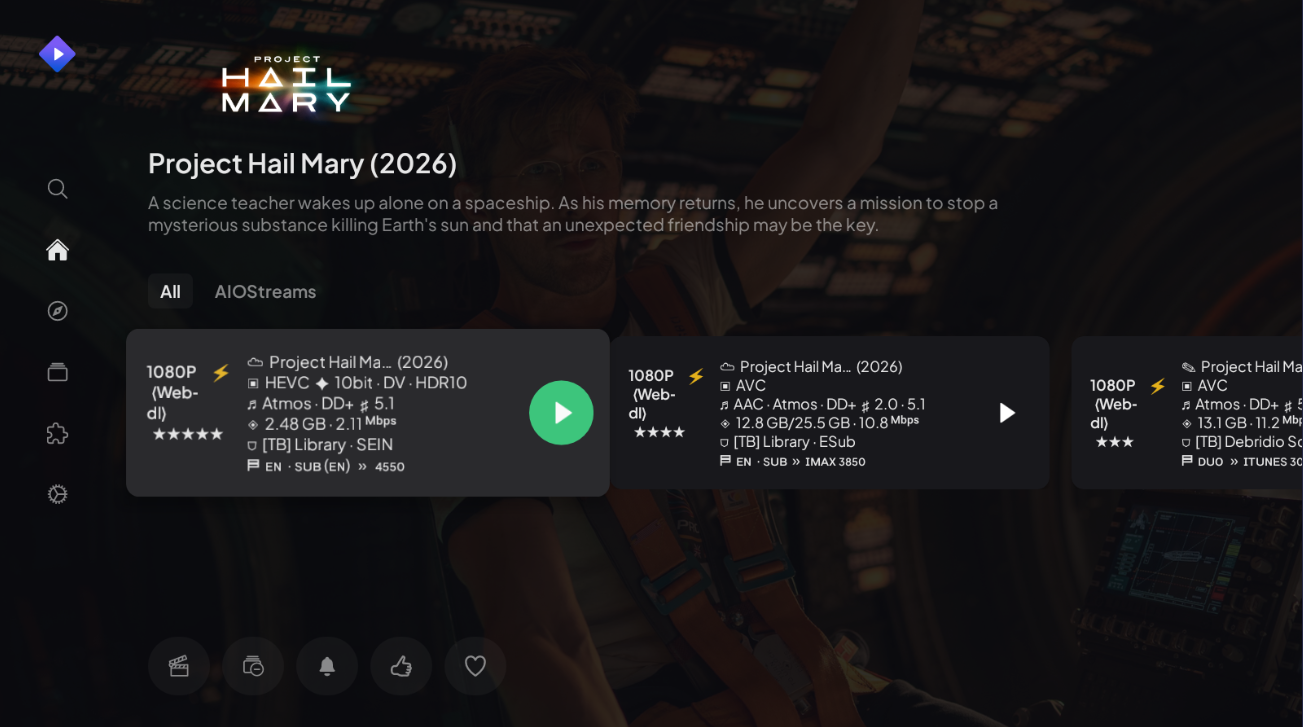
Pick one and press OK — playback starts.
Decoding stream info
A stream tile looks like a wall of acronyms. Here's what each part actually means.
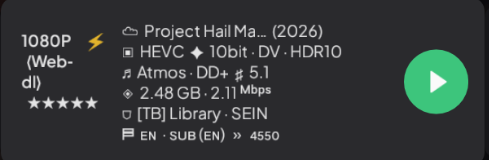
Resolution & source — top-left.
- 1080P · standard HD. 4K / 2160P is ultra HD; 720P is lower.
- (Web-dl) · downloaded straight from a streaming service. Web-dl is generally the cleanest source; BluRay is the absolute best, WebRip / HDRip are lower quality.
- ⚡ Lightning bolt · this one is instantly available — it'll start playing right away with no wait.
- ★★★★★ · a rough quality score the addon computed. More stars = better.
Video format — the line with codec info.
- HEVC (a.k.a. H.265) · modern video codec. Smaller files for the same quality. x264 / AVC is the older one — works everywhere, slightly bigger.
- 10bit · richer color than standard 8-bit. Looks noticeably better on a good TV.
- DV · Dolby Vision. Premium HDR. Your TV has to support it.
- HDR10 · the more common HDR format. Most modern TVs handle it.
Audio — the music note line.
- Atmos · Dolby Atmos. Surround sound that includes height channels. Needs an Atmos-capable soundbar or receiver to fully shine; otherwise it falls back to plain surround.
- DD+ · Dolby Digital Plus. Better than plain DD, common on streaming-service rips.
- 5.1 · 5 speakers + 1 subwoofer (surround). 2.0 is plain stereo, 7.1 is bigger surround.
File size & bitrate — the disk icon line.
- 2.48 GB · how big the file is.
- 2.11 Mbps · bitrate. Higher = better picture quality (more data per second of video).
For 1080P movies, anything around 8–20 Mbps is great; under 5 Mbps starts to look soft. Don't sweat this — the sort order already accounts for it.
Source & language — the bottom rows.
- [TB] Library · SEIN · who originally released this file. SEIN is the release group; the bit in brackets is the source library tag. Doesn't matter to you most of the time — it's mostly so you know it's not a duplicate of the next one in the list.
- EN · SUB(EN) · English audio, with English subtitles available.
- » 4550 · seeder / availability count. Higher = more reliable, faster to start.
You're done
Stremio's all set.
Add the shows you actually watch to your library, let Continue Watching surface new episodes, and pick the top stream when something looks good. Anything weird? Text me.